HTML Viewer for Non-Developers: Check Meta Tags & Edit Content Easily
Struggling to understand HTML as a content creator or marketer? You're not alone. Many professionals need to check meta tags, validate headings, or make simple content edits without learning to code. The idea of looking at a wall of <p>, <h1>, and <div> tags can be intimidating. But what if you could see and understand your content's structure without writing a single line of code?
An online HTML viewer transforms how you interact with your website's code. It provides a simple, visual interface that shows you exactly what’s happening behind the scenes. In this guide, we'll walk you through how to use an HTML viewer to perform essential content checks and simple edits, even if you've never touched code before.
Why Content Marketers Need to Understand HTML Basics
You don't need to become a developer, but a basic grasp of HTML is a superpower for any content marketer. It helps you understand how search engines see your content and how users experience it. This knowledge empowers you to create more effective, optimized, and accessible content.
How HTML Structure Impacts Your SEO Performance
Search engines like Google don't read your content like humans do. Instead, they scan your HTML code to understand the hierarchy and meaning of your content. Key HTML elements tell search engines:
- What your page is about (the
<title>tag). - What the most important heading is (the
<h1>tag). - How your content is organized (the
<h2>,<h3>tags). - What your images show (the
altattribute in<img>tags).
Clean, logically structured HTML helps search engines index your content more accurately. This directly improves your ability to rank for relevant keywords and drive organic traffic.
Common HTML Elements Every Content Creator Should Know
Forget the complex parts. As a marketer, you only need to recognize a few key tags. Think of them as formatting instructions for your content.
<h1>,<h2>,<h3>: These are your heading tags.<h1>should be your main title, with<h2>for main sections and<h3>for subsections.<p>: This is a standard paragraph tag. Most of your text will be wrapped in these.<a>: This is an anchor tag, which creates a hyperlink. Thehrefattribute inside the tag holds the destination URL.<strong>or<b>: These make text bold.<em>or<i>: These make text italic.<ul>,<ol>,<li>: These create lists.<ul>is for bulleted (unordered) lists,<ol>is for numbered (ordered) lists, and<li>represents each list item.<img>: This is the image tag. Look for thealtattribute within it—that's your alt text!
Knowing these will give you the confidence to inspect your content and make small, impactful changes.
Getting Started with HTML Viewer: A Marketer's First Look
An online HTML viewer is designed for simplicity. It removes the technical barriers, allowing you to focus on your content. You'll see both your raw code and how it appears to visitors, right next to each other.
Importing Your Content: URL vs. Paste Methods
Getting your content into the viewer is your first step, and you have two easy options:
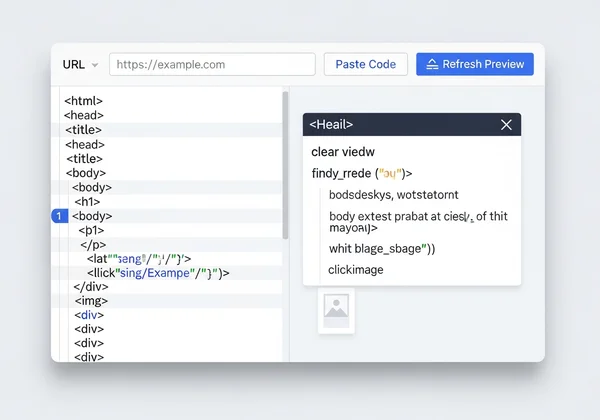
- Import from URL: This method is perfect for checking live webpages. Just find the URL of the page you want to inspect, paste it into the tool, and it will automatically fetch the HTML source code for you. This is the fastest way to audit existing content.
- Paste Your Code: If you have content in a Google Doc, WordPress editor, or another CMS, you can often switch to its "HTML" or "Text" view. From there, copy the code and paste it directly into the editor. This method is great for checking content before you publish it.
Both methods are incredibly straightforward and require no technical setup. You can test it now by grabbing a URL from your own website.
Understanding the Split-Screen Interface: Code vs. Preview
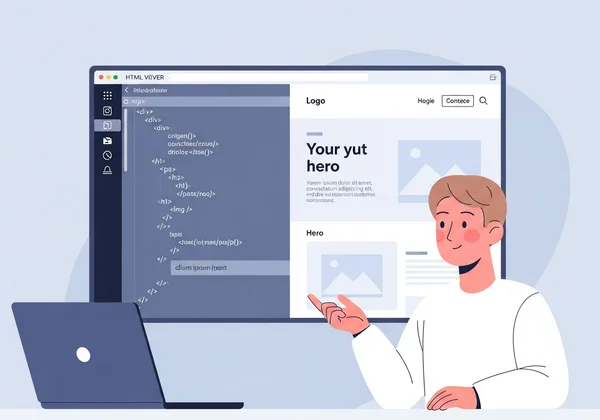
Once your content is loaded, you'll see a split-screen layout. This is the core of what makes an HTML viewer so powerful for non-developers.
- On one side (usually the left), you have the raw HTML code. This is the "behind-the-scenes" view. Don't be intimidated! This is where you'll look for your tags (
<h1>,<p>, etc.). - On the other side (usually the right), you see the live visual preview. This is what your content looks like to a user. It renders the code into a readable, formatted page.
This instant feedback loop is invaluable. When you make a small change in the code, you can immediately see the result in the preview. This visual connection helps you understand how code translates into a real webpage.
Essential SEO Checks You Can Perform Without Coding Skills
With your content loaded into an HTML viewer, you can now perform a quick SEO audit without needing any complex tools. This is perfect for ensuring your on-page SEO fundamentals are correct.
Validating Your Title Tags and Meta Descriptions
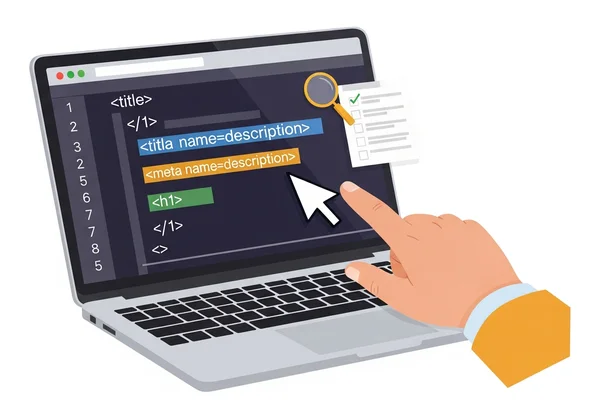
The title tag (<title>) and meta description are two of the most critical elements for click-through rates from search results. In the HTML code, look for these tags near the top, inside the <head> section.
- Check the
<title>: Is it compelling? Does it contain your target keyword? Is it under 60 characters? - Check the
<meta name="description" ...>: Is it an engaging summary of your page? Does it include a call to action? Is it under 160 characters?
Using a viewer makes finding and verifying these elements simple.
Checking Heading Structure: H1, H2, and Beyond
Proper heading structure is crucial for both readability and SEO. Your page should have only one <h1> tag, which is typically your main article title. Following that, use <h2> tags for major sections and <h3> tags for sub-points within those sections.
Scan the code in the viewer for <h1>, <h2>, and <h3> tags. Do they follow a logical order? Or have you accidentally used multiple <h1>s or skipped heading levels (e.g., going from an <h2> straight to an <h4>)? Correcting this hierarchy helps search engines understand your content's structure.
Finding and Fixing Broken Links in Your Content
Broken links create a poor user experience and can harm your SEO. Although a viewer won't automatically detect broken links, it makes them easy to find. Simply look for <a> tags in your code and check the href="..." attribute in each one.
- Is the URL spelled correctly?
- Are you linking to the right page?
- Did you accidentally leave a placeholder URL (like
href="#") in the content?
This quick visual check can help you spot errors that are easy to miss in a standard text editor.
Simple HTML Edits Content Marketers Can Make Themselves
Once you're comfortable viewing HTML, you can start making simple edits. This empowers you to fix small issues quickly without waiting for a developer. Remember to always keep a backup of your original content!
Formatting Text: Bold, Italic, and Lists
Need to make a key phrase stand out? Find the text in the code editor and wrap it with <strong>your text here</strong> for bold or <em>your text here</em> for italics. The preview panel will instantly show you the change. The same goes for lists. You can easily add a new list item by adding another <li>New item</li> line within an existing <ul> or <ol> block.
Adding Images and Alt Text for Better Accessibility
Adding an image is as simple as inserting an <img> tag. More importantly for SEO, you can ensure every image has descriptive alt text. Find your <img> tags in the code and look for the alt="..." attribute. If it's missing or empty, you can add it yourself.
For example: <img src="image-url.jpg" alt="a content marketer checking HTML on a laptop">. This small change makes your content more accessible to screen readers and helps search engines understand what your images are about.
When to Call a Developer: Knowing Your Limits
While an HTML viewer empowers you to do a lot, it's important to know your limits. You can confidently handle text formatting, link updates, and simple tag corrections.
However, if you need to change the page layout, modify complex interactive elements like forms or navigation menus, or edit CSS and JavaScript files, it's time to call a developer. Trying to edit these complex structures without expertise can break your website. Use the viewer for content, not for site-wide structural changes.
Your New HTML Workflow for Content Creation
Embracing a little HTML doesn't have to be difficult. By using a simple online tool, you can take control of your content's quality and SEO performance. You can now confidently check meta tags, validate your heading structure, fix broken links, and make quick text edits—all without needing a developer's help.
This new workflow saves you time and gives you a deeper understanding of how your content performs. Ready to see your website in a new light? Paste any URL into our HTML Viewer to uncover what's behind the scenes.
Take control of your content today. Paste your code or URL into the free HTML Viewer and see what you can discover!
Frequently Asked Questions About HTML Viewer for Content Marketers
What is an HTML viewer and how does it help non-technical users?
An HTML viewer is an online tool that renders HTML code into a visual webpage. For non-technical users, it provides a simple split-screen view showing the raw code on one side and the live preview on the other. This makes it easy to see how code translates into design and helps you check elements like headings and links without any technical knowledge.
Can I really make SEO improvements without knowing how to code?
Absolutely. Many crucial on-page SEO factors are tied to simple HTML tags. By using a tool to check your title tags, meta descriptions, heading structure (H1, H2), and image alt text, you are directly improving your site's SEO. You don't need to write code from scratch, just recognize and verify these key elements.
Is HTML Viewer suitable for checking all types of websites?
Yes, an HTML viewer can display the source code of almost any website. It's especially useful for content-heavy sites like blogs, articles, and landing pages. While it may not render highly complex JavaScript-driven applications perfectly, it is an excellent tool for auditing the fundamental HTML structure and content of any standard webpage. You can try our free tool with any URL to see how it works.
How often should content marketers check their HTML for SEO issues?
It's a good practice to perform a quick check before publishing any new piece of content. This ensures your headings and meta tags are correct from the start. Additionally, it's wise to conduct a brief audit of your key existing pages once a quarter to catch any formatting errors or broken links that may have appeared over time.
What are the limitations of using HTML Viewer for content editing?
While an HTML viewer is great for minor content edits, it's not a replacement for a full Content Management System (CMS) like WordPress. Its primary purpose is viewing, checking, and making small changes to HTML. For major structural changes, design modifications (CSS), or managing an entire website, you should stick to your site's native editing platform.