Check Copied HTML Before Publishing
Why copied HTML causes quiet publishing mistakes
Copied HTML often looks harmless. It came from a CMS block, an older page, an AI tool, or an email builder, so it feels close enough to ready.
That is exactly why small issues slip through. A stray heading level, a missing image detail, or an extra wrapper can survive copy and paste all the way to production.
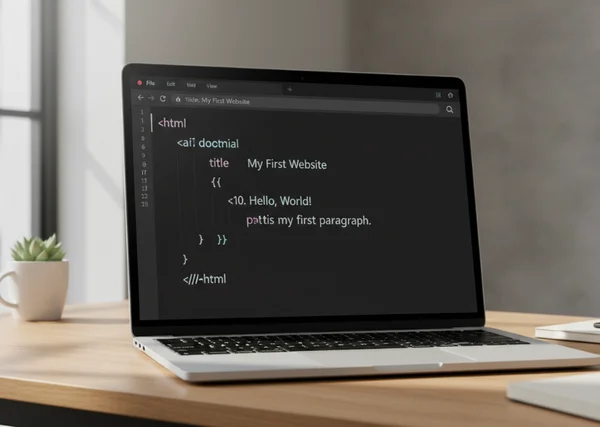
A quick pass in an online HTML viewer helps because it turns hidden markup into something readable. Instead of guessing, you can format the snippet, scan the structure, and see whether it still makes sense before it goes live.
What usually goes wrong in copied HTML
Most copy-paste problems are not dramatic syntax crashes. They are quiet structure and readability issues that are easy to miss when the code is still compressed or mixed with old markup.
Hidden formatting and broken nesting
Copied snippets often carry leftover wrappers, empty tags, or indentation that hides what belongs inside what. That makes the code harder to read and much easier to misplace when you edit a single paragraph or link.
The first goal is not to memorize every HTML rule. It is to make the structure visible enough that the main blocks, nested elements, and repeated patterns are easy to spot.
Reused headings, links, and image attributes
Heading problems are common in reused snippets. MDN's heading elements reference says HTML uses 6 heading levels, from h1 as the highest section level to h6 as the lowest. If copied code jumps levels or repeats a heading that does not fit the new page, the snippet becomes harder to scan.
Images also deserve a second look. MDN's img element reference says the alt attribute is the textual replacement for an image and notes that some screen readers may announce the file name when alt text is missing. That makes copied image markup worth checking even when the picture still loads.
A 5-step HTML review before you publish
A short checklist is usually enough to catch the most common problems.
- Format the snippet so the structure is readable.
- Check the top-level sections and wrappers.
- Review headings, links, and images.
- Preview the snippet as a reader would.
- Confirm that the final version matches the page where it will live.
Check the page structure first
Start with the broadest question: what is this snippet supposed to be? A full page, a content block, a card, a section, or a tiny embed? The answer changes what “clean structure” looks like.
MDN's main element reference says a document should not have more than 1 visible main element unless the others are hidden. That is a simple example of why structure matters. A copied full-page fragment may bring page-level markup into a place where only one content section belongs.
This is where a browser-based HTML review tool helps most. You can paste the snippet, format it, and check whether the high-level structure matches the destination page before touching the live editor.
Clean the text, links, and media details
Once the outer structure looks right, read the snippet like an editor instead of like a developer. Check whether the headings still fit the new page. Check whether links still point to the right place. Check whether image alt text still describes the actual image being used.
Copied HTML often carries old anchor text, old tracking parameters, or image descriptions that no longer match the content. These are small details, but they affect clarity and trust.
Preview the snippet as a reader would
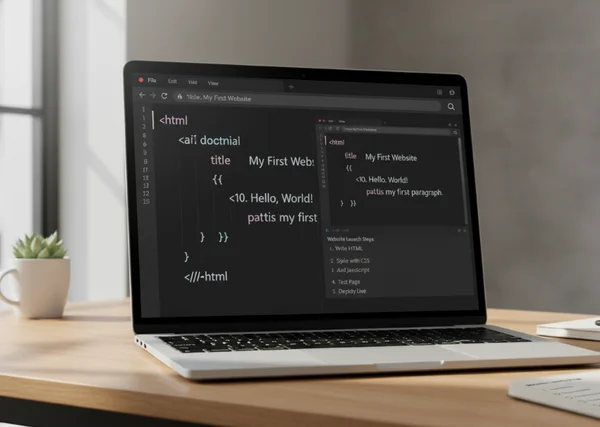
After the text and structure look clean, preview the snippet. This is the fastest way to catch spacing issues, repeated headings, awkward lists, and visual clutter that did not stand out in raw code.
The preview step is especially useful for non-developers. It closes the gap between markup and what a reader will actually see.
When a lightweight viewer is enough
Not every snippet needs a full local setup. Many everyday checks are simple enough to handle in a browser.
Fast checks for editors and beginners
A lightweight viewer is enough when the goal is to read structure, clean formatting, inspect headings, verify links, or confirm image details. It also works well when you only need to review a small block from a CMS, landing page section, help article, or email snippet.
For these jobs, speed matters more than a full debugging stack. A quick snippet preview workflow is often faster than opening a heavier tool when the task is only to inspect and confirm.
Signs you need a deeper developer tool
A lightweight viewer is not the right tool for every job. If the problem depends on JavaScript behavior, computed styles, network requests, or environment-specific rendering, a deeper developer tool is the better choice.
The same is true when the snippet depends on a build system, external components, or page logic that cannot be understood from HTML alone. A viewer can show the structure clearly, but it should not be presented as a full replacement for a complete development environment.
A simple workflow for repeat HTML checks
The most useful HTML review habits are the ones that can be repeated under pressure. A simple routine beats a perfect one that nobody uses.
Paste, format, scan, preview, confirm
Paste the snippet. Format it. Scan the top-level structure. Review headings, links, and images. Preview the result. Confirm that the final version matches the destination page.
That sequence is short enough for quick publishing work and clear enough for beginners. It also keeps the review focused on the exact problems copied HTML tends to create.
Keep one checklist for every copied snippet
A saved checklist removes second-guessing. It also makes team handoffs cleaner, because everyone checks the same few things before publishing.
The checklist does not need to be long. If it covers structure, headings, links, images, and preview, it already catches most reuse mistakes.
What to do next before the snippet goes live
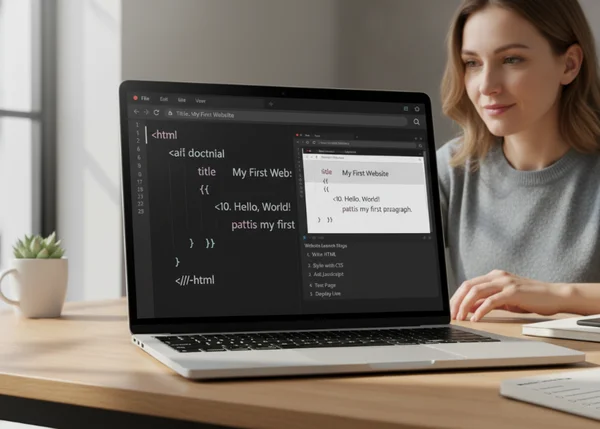
Before publishing, run one final check with the page context in mind. Ask whether the snippet belongs in this page, whether the headings still make sense, and whether the visible result matches the intent.
That final minute is usually enough to catch the quiet errors that copy-paste work hides. A lightweight viewer does not replace every developer tool, but it is a fast and practical place to make copied HTML readable before it becomes public.
FAQ about checking copied HTML
What should you check first in copied HTML?
Check the outer structure first. Once the snippet is formatted, it becomes much easier to see whether the wrappers, headings, and blocks belong in the new page.
Does formatting HTML change how it works?
Formatting mainly changes readability. It helps people inspect the structure more clearly, which is why it is a useful review step before publishing.
When should you stop and use a deeper tool?
Use a deeper tool when the issue depends on scripts, computed styles, or page behavior outside the HTML itself. If the problem is only structure and readability, a lightweight viewer is usually enough.