Advanced HTML Viewer Workflows: Streamline Your Coding Process
Are you tired of switching between five different browser tabs just to test one small piece of code? Many developers and designers struggle with a cluttered workspace. When you have to open a heavy IDE just to check a simple layout, you lose time and focus. How can you make your coding process faster and more efficient?
The answer lies in using an integrated environment. An online html editor can help you skip the setup and get straight to the results. Instead of managing local files and refreshing your browser constantly, you can work in a single, streamlined interface. This article will show you how to use advanced workflows to transform your daily development tasks.
In this guide, we'll dive into professional techniques for managing code snippets, automating your work, and preparing code for production. Whether you are a senior engineer or a visual designer, these workflows will help you work smarter. Let’s look at how you can use professional tools to simplify your technical life.
Mastering Code Snippet Management
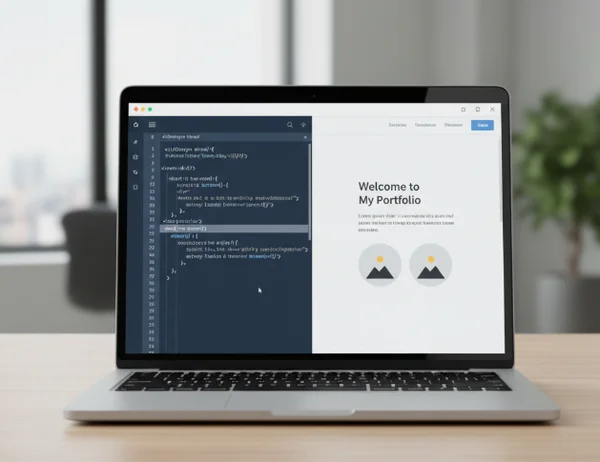
A "code snippet" is a small, reusable piece of code. For most developers, these are the building blocks of every project. Instead of writing a navigation bar or a contact form from scratch every time, you should have a library of snippets ready to go. Efficient code snippet management is the first step toward a faster workflow.
Creating and Organizing Reusable Code Snippets
The key to a good library is organization. You should not just save every piece of code you find. Instead, focus on high-quality HTML templates that you use frequently. For example, create a "Standard Layouts" folder for grid systems and a "UI Components" folder for buttons and inputs.
An online platform lets you view html source to quickly identify which parts of a website are worth saving. Once you find a clean structure, paste it into your editor and refine it. Make sure your snippets follow modern standards, like using semantic HTML5 tags. This makes them easier to reuse across different projects without having to fix old errors.
Efficient Code Snippet Retrieval and Modification
Saving code is only helpful if you can find it when you need it. Use clear naming conventions for your snippets. Instead of naming a file "test1.html," name it "responsive-navbar-dark-mode.html." This simple change saves you minutes of searching later.
Once you retrieve a snippet, you'll typically need to modify it for a new project. A high-quality tool lets you change parameters—like colors, font sizes, or link paths—and see the results instantly. This "live modification" approach is much faster than the old "save, refresh, repeat" cycle. It allows you to experiment with different styles in seconds. This ensures your final product looks exactly right.
HTML Viewer Automation Techniques
Automation is about reducing the number of clicks and keystrokes needed to finish a task. If you perform a specific action more than three times a day, you should find a way to automate it. By using html viewer automation, you can focus on the creative parts of your project while the tool handles the repetitive parts.
Setting Up Custom Keyboard Shortcuts
Speed is essential in modern web development. Most professional tools offer keyboard shortcuts to help you navigate the editor without touching your mouse. For example, using "Ctrl + Enter" to run your code or "Ctrl + B" to beautify the formatting can save hours over a week.
Learning these shortcuts might take a few days, but the payoff is huge. You can try our tool to see how responsive an editor feels when you use your keyboard for everything. Set up a workflow where you grab code from live sites and process it in one place. If you are a power user, check if your browser allows you to map specific keys to the editor’s functions. This creates a personalized command sequence that fits your unique way of working.
Browser Extension Integration
You don't have to work in a vacuum. Many developers use browser extensions to connect their online tools with their local environments. You can set up a workflow where you grab a piece of code from a live website and send it directly to your editor with one click.
This integration is perfect for debugging. Imagine you see a layout bug on a live site. Instead of opening the complex 'Inspect Element' panel and getting lost in thousands of lines of code, you can pull the specific HTML into a clean environment. From there, you can isolate the problem, fix it, and then copy the solution back to your main project. This bridge between the live web and your workspace is a game-changer for productivity.
Production-Ready Code Processing Pipelines
Once your code works, it isn't always ready for the public. Production code needs to be clean for humans to read but optimized for machines to load. Creating a production-ready pipeline ensures that your websites are both maintainable and fast.
Implementing Beautify-Minify-Preview Workflow
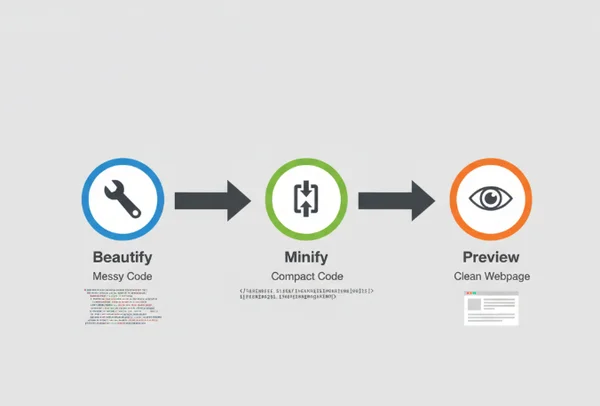
A professional workflow usually follows three main steps: Beautify, Minify, and Preview.
- Beautify: When you are writing or debugging, you need the code to be easy to read. A "beautifier" adds proper indentations and line breaks. This helps you spot a missing closing tag or a nested list error.
- Minify: Once the code is perfect, you need to "minify" it. This process removes all unnecessary spaces, comments, and line breaks. This makes the file size smaller, which means your website loads faster. Speed is a major factor for search engine rankings.
- Preview: After you minify the code, always check the visual result one last time. Sometimes, aggressive minification can break a layout. Using a tool to beautify your code and then minify it in one place ensures the transition is smooth.
This cycle balances code aesthetics with technical performance. It ensures that your fellow developers can read your work. At the same time, your users don't have to wait for a slow site to load.
Batch Processing Multiple HTML Files
If you are working on a large project with dozens of pages, processing them one by one is a waste of time. Batch processing allows you to apply the same rules to many files at once. You can handle minification or header updates across the whole project. This maintains consistency across your entire environment.
Consistency is vital for branding and search optimization. If your H1 tags or meta descriptions are formatted differently on every page, it confuses both users and search engines. By using a centralized platform to process your files, you ensure that every page meets the same high standard before you hit the "deploy" button.
Today's Takeaways: Elevate Your Development Workflow
Today, we've explored several powerful workflows, from managing your personal snippet library to building an automation pipeline. Here's the bottom line: the right tools make all the difference. By using an integrated html viewer, you remove the friction from your daily tasks.
Keep these three strategies in mind:
- Organize your snippets to avoid repeating work.
- Use shortcuts and extensions to speed up your editing.
- Beautify and minify your code to ensure it is ready for the real world.
Don’t let a slow workflow hold back your creativity. Whether you are building a simple landing page or a complex web application, the right environment changes everything. Visit the homepage today and start implementing these advanced workflows. You will be surprised at how much more you can achieve when your tools work as hard as you do.

Frequently Asked Questions About HTML Viewer Workflows
Can I integrate HTML Viewer with my existing development environment?
Yes, you certainly can. Most developers use an online HTML viewer alongside their local IDE like VS Code. You can use the online tool for rapid prototyping. It is also great for testing specific snippets that you don't want to clutter your main project files with. Simply copy your code and edit html online to see instant results. Many users also find that using browser extensions allows them to send code from their browser directly into the viewer for faster debugging.
How do I save custom templates for frequently used code structures?
To save custom templates, it is best to keep a "Master Snippet" document or use the built-in storage features of your chosen tool. When you create a structure you like—such as a responsive card layout—copy the code and save it with a descriptive name. Next time you need that layout, you can simply paste it back into the editor, adjust the content, and you’re done! This is much faster than searching through old project folders on your computer.
Is there a limit to how many snippets I can save?
If you are using local browser storage, the limit is usually around 5MB. This is enough for thousands of HTML snippets. However, for long-term safety, we recommend backing up your most important snippets to a cloud service or a dedicated GitHub repository. Using an online tool is great for the "active" phase of your work, while external storage is better for permanent archiving.
Can HTML Viewer handle large HTML files for batch processing?
Most online viewers are optimized for speed and can handle files up to several megabytes without any lag. If you are processing a very large file, such as a complete data export, it is best to use the "Minify" function first. This reduces the load on your browser's memory. For the best experience, test your standard project files in the viewer. It is designed to be lightweight and responsive, even when handling complex CSS and HTML structures.